
Claude Code, Codex, or Antigravity
- Install the CLI and sign in from your terminal:
claude,codexoragy. - Pick it from the agent menu. Cue finds it on your shell’s PATH.
- Optionally set its model, thinking and access in
 Settings →
  Providers.
Bring the coding agents you already use, or run a hosted model or your own private local model, all from
Settings → Providers.
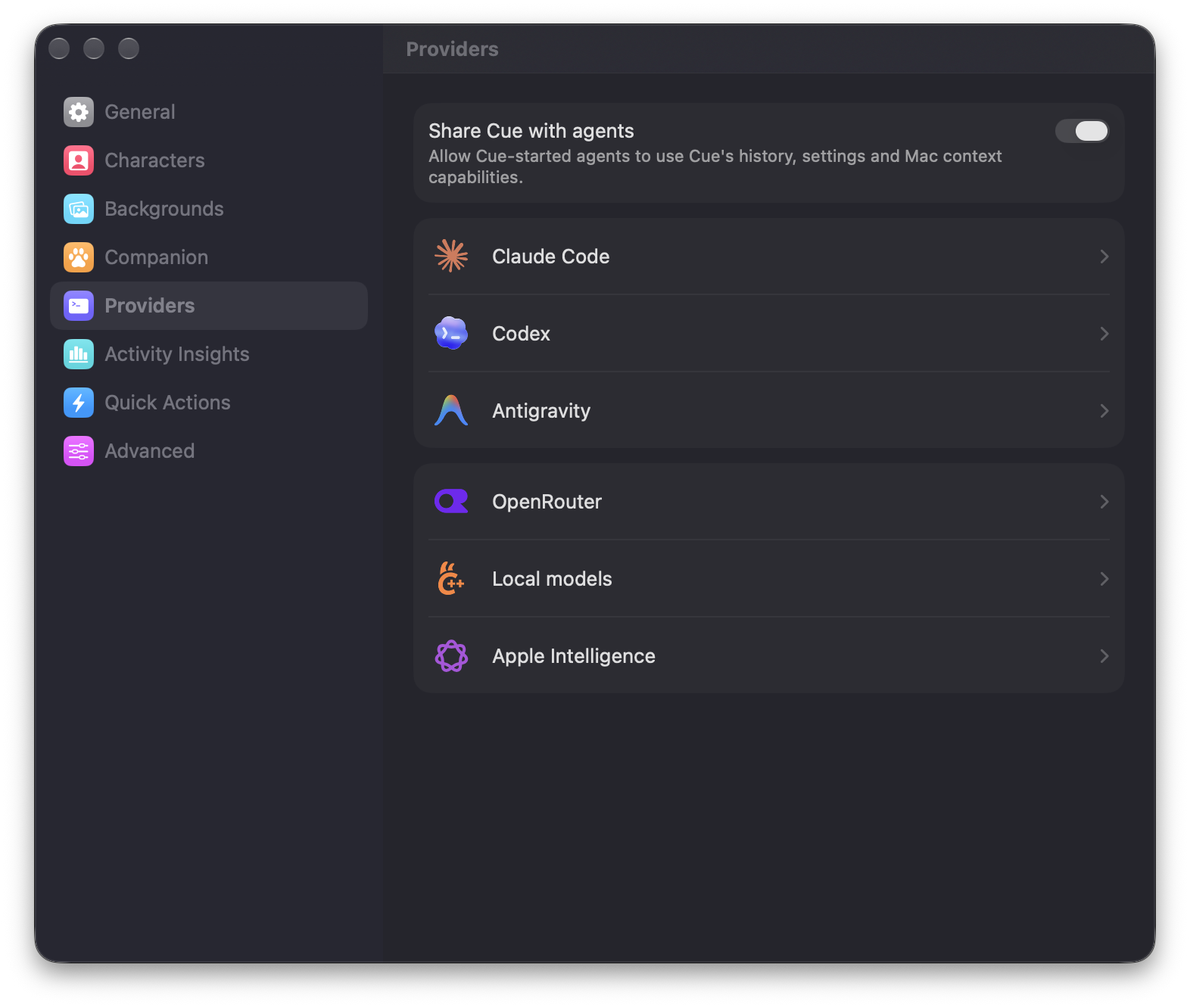
The difference is who runs the agent: a CLI you installed, or Cue itself.
Cue starts the CLI in your login shell, so it has the same PATH, keys and sign-in as your terminal. Your past sessions with it appear in History and resume in Cue.
Cue runs the agent itself. The model writes short scripts that call Cue’s tools for files, search, the web, screenshots and documents.
Each takes a one-time setup. After that, pick it from the agent menu in any chat.
claude, codex or
agy.Settings → Providers. Settings → Providers → OpenRouter, choose Connect OpenRouter. You sign in on
openrouter.ai and Cue keeps the key it issues. Have a key already? Choose Use an API key
instead… or set
Settings → Providers → OpenRouter, choose Connect OpenRouter. You sign in on
openrouter.ai and Cue keeps the key it issues. Have a key already? Choose Use an API key
instead… or set OPENROUTER_API_KEY in your shell.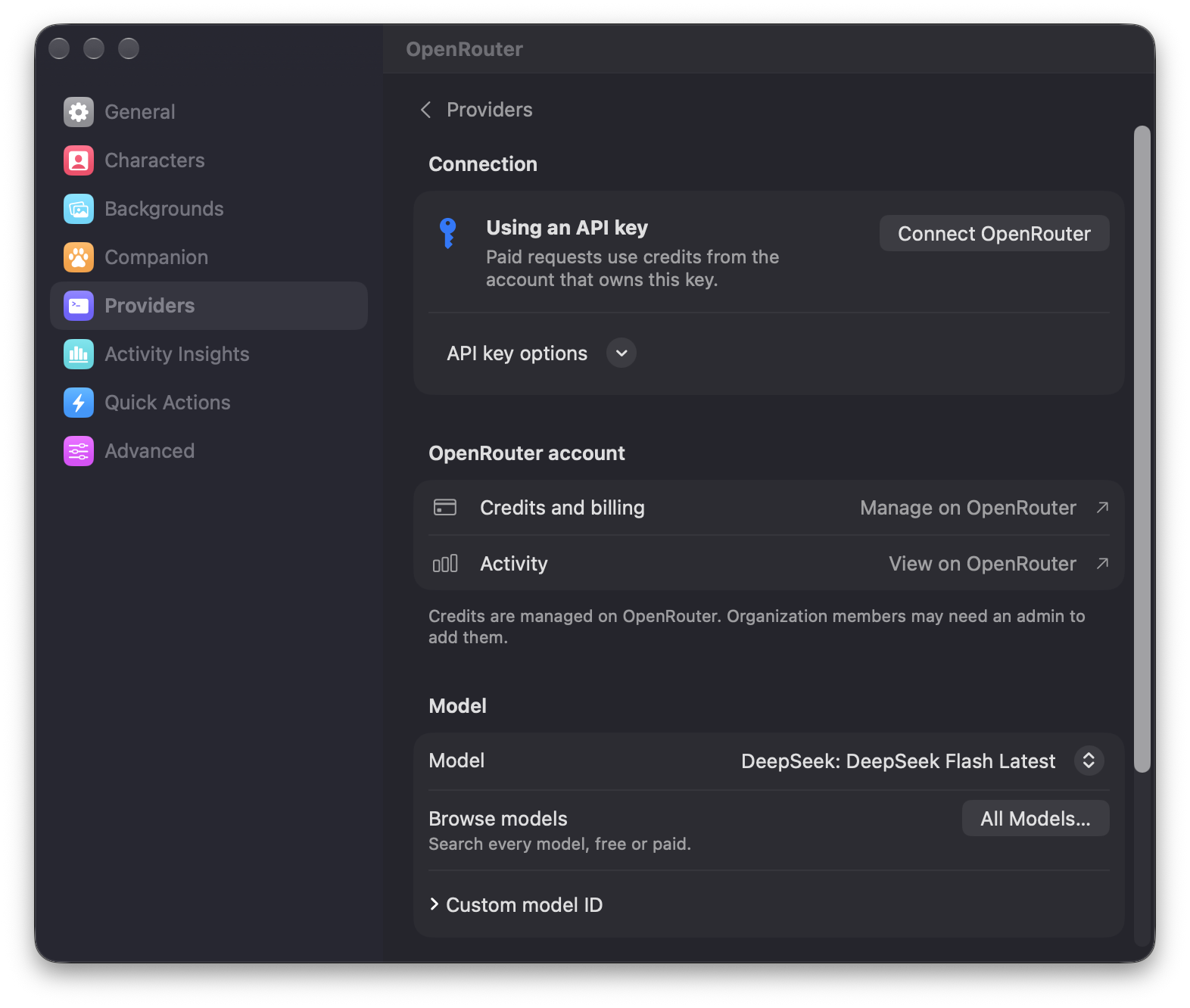
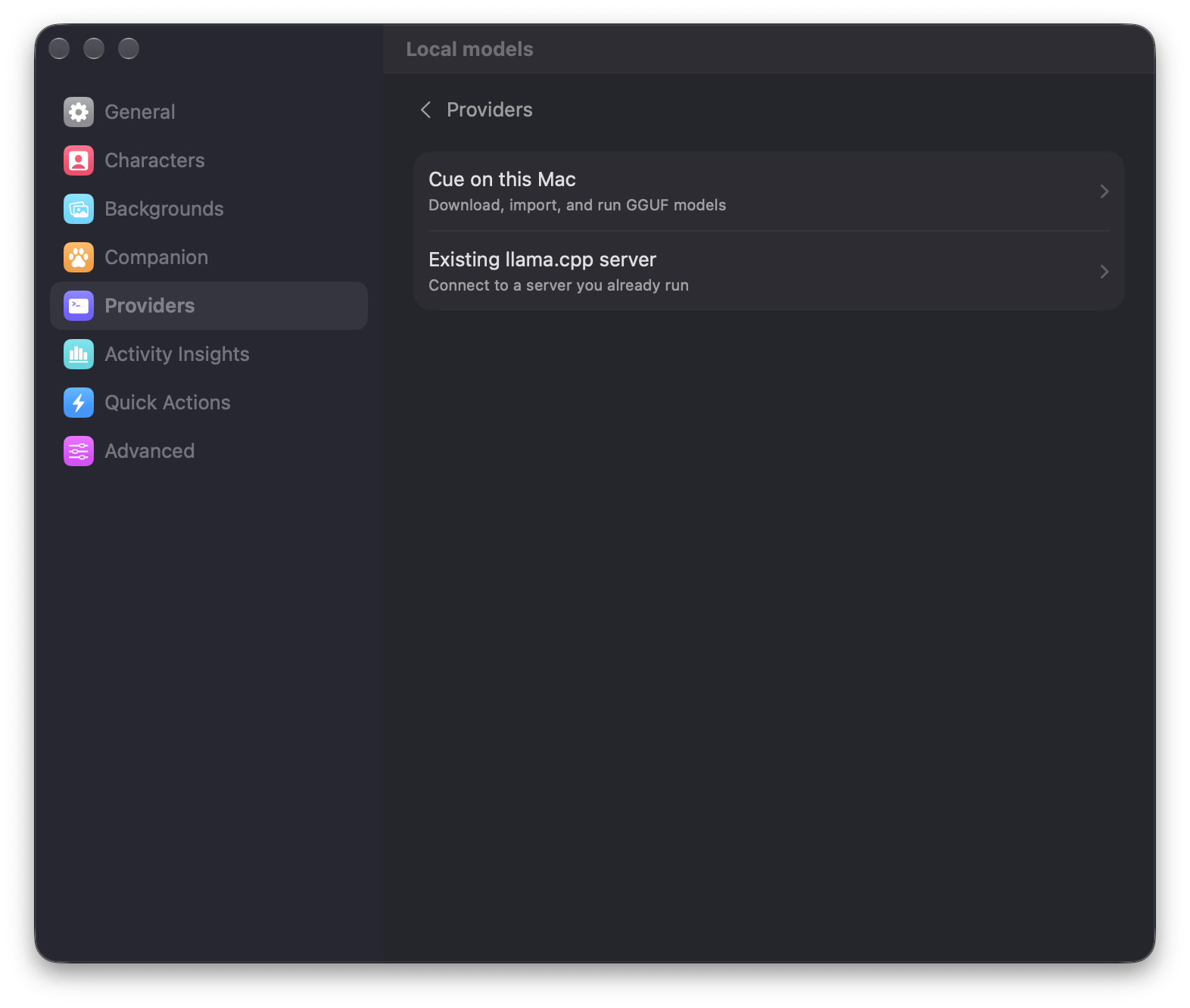
 Settings → Providers → Local models.